How to Fork a Repository
In this tutorial, you will learn how to fork a GitHub repository and create your own copy of a project that you can freely experiment with and contribute back to.
What is Forking?
Forking a repository creates a personal copy of someone else's project in your GitHub account. This allows you to:
- Experiment with changes without affecting the original project
- Propose changes to the original project via pull requests
- Use someone else's project as a starting point for your own idea
- Contribute to open-source projects
When Should You Fork?
You should fork a repository when you want to:
- Contribute to an open-source project
- Use an existing project as a template
- Experiment with code without affecting the original
- Create your own version of a project
Steps to Fork a Repository
Step 1: Navigate to the Repository
Go to the repository you want to fork.
Make sure you're logged into your GitHub account.
https://github.com/sanjay-kv/Learn-GitHub

Step 2: Click the Fork Button
In the top-right corner of the repository page, you'll see a "Fork" button. Click on it to start the forking process.
GitHub will show you a screen asking where you want to fork the repository (usually to your personal account).
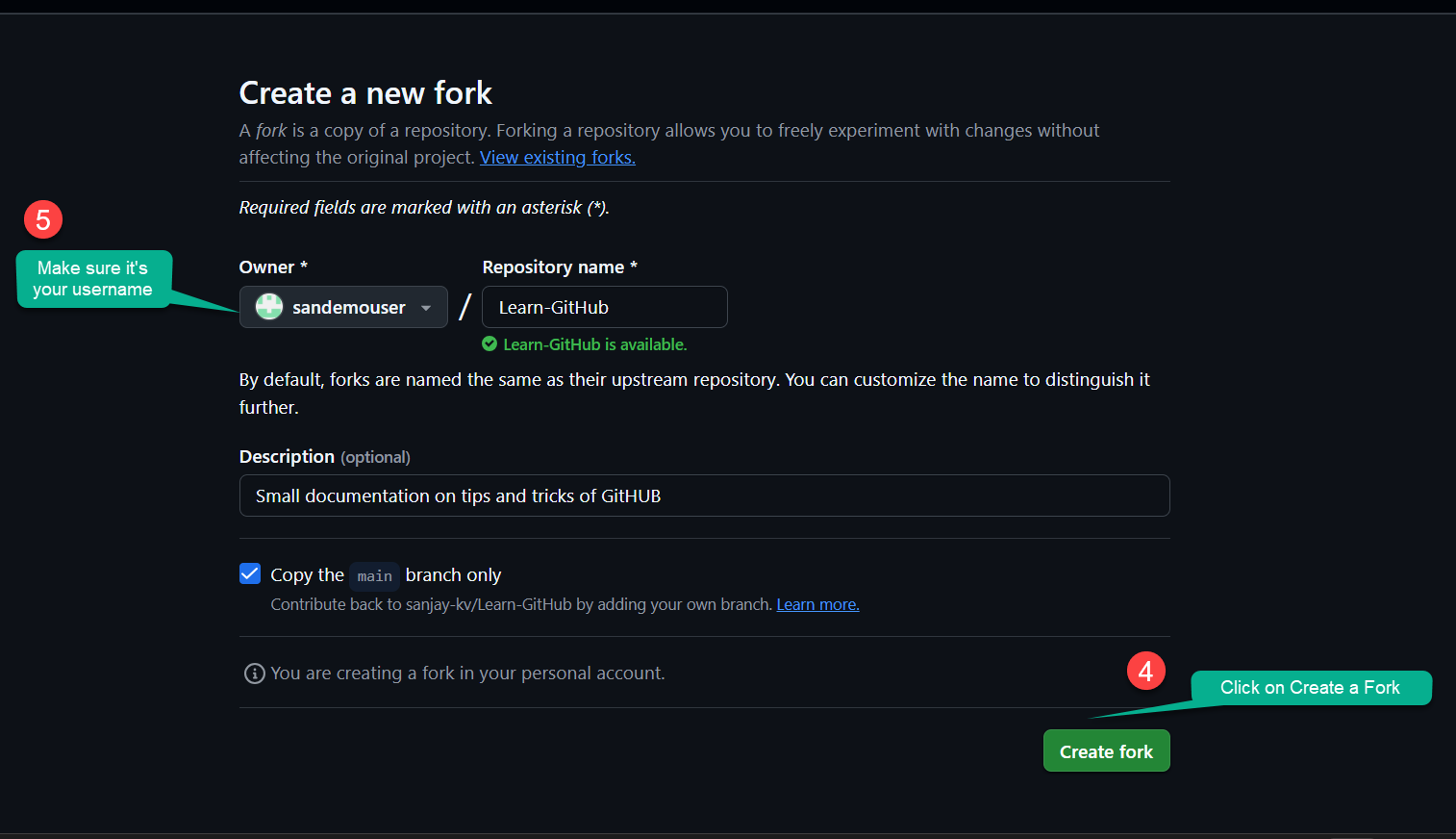
Step 3: Wait for the Fork to Complete
GitHub will create a copy of the repository under your account. This process usually takes a few seconds. Once complete, you'll be redirected to your forked repository.
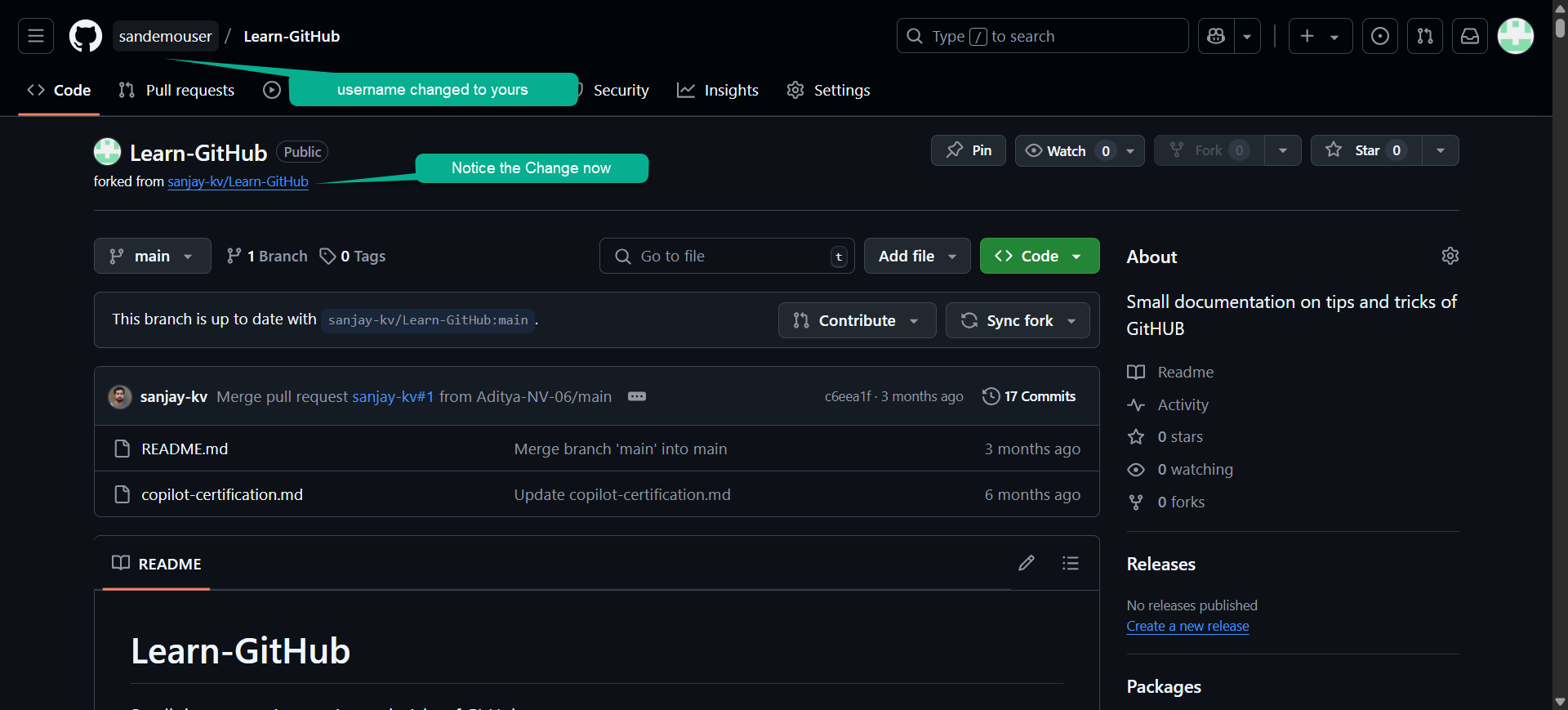
Step 4: Verify Your Fork
After forking, you should see:
- The repository name with your username:
yourusername/Learn-GitHub - A note indicating "forked from sanjay-kv/Learn-GitHub"
- All the files and branches from the original repository
- Always fork before contributing to open-source projects
- Keep your fork synced with the original repository regularly
- Create descriptive branch names for different features or fixes
- Write clear commit messages explaining what and why
- Follow the project's contribution guidelines if they exist
- Test your changes before submitting a pull request
- Be respectful and patient when waiting for pull request reviews
- Start with small contributions to understand the project's workflow
Fork vs Clone
Understanding the difference is important:
| Aspect | Fork | Clone |
|---|---|---|
| Location | Creates a copy on GitHub | Creates a copy on your local machine |
| Purpose | Contributing to others' projects | Working on your own or cloned projects |
| Connection | Maintains link to original repo | No direct link to original repo |
| Visibility | Public on your GitHub profile | Only on your computer |
Deleting a Fork
If you no longer need your fork:
- Go to your forked repository
- Click "Settings"
- Scroll to the bottom
- Click "Delete this repository"
- Confirm by typing the repository name
Deleting a fork is permanent and cannot be undone. Make sure you have backed up any important changes.
Conclusion
Forking is a powerful feature that enables collaboration and experimentation in the GitHub ecosystem. By forking repositories, you can contribute to open-source projects, learn from others' code, and create your own versions of existing projects without affecting the original.