Create Repo Via Command line
HTML (Hypertext Markup Language) is the standard markup language for creating web pages. It provides the structure and layout of the content on the web. In this tutorial, you will learn about the syntax and structure of HTML.
Prerequisites
- You should have a GitHub account.
- You should have a basic understanding of how Git works and ensure Git is installed and running on your operating system.
How to create Github Repository
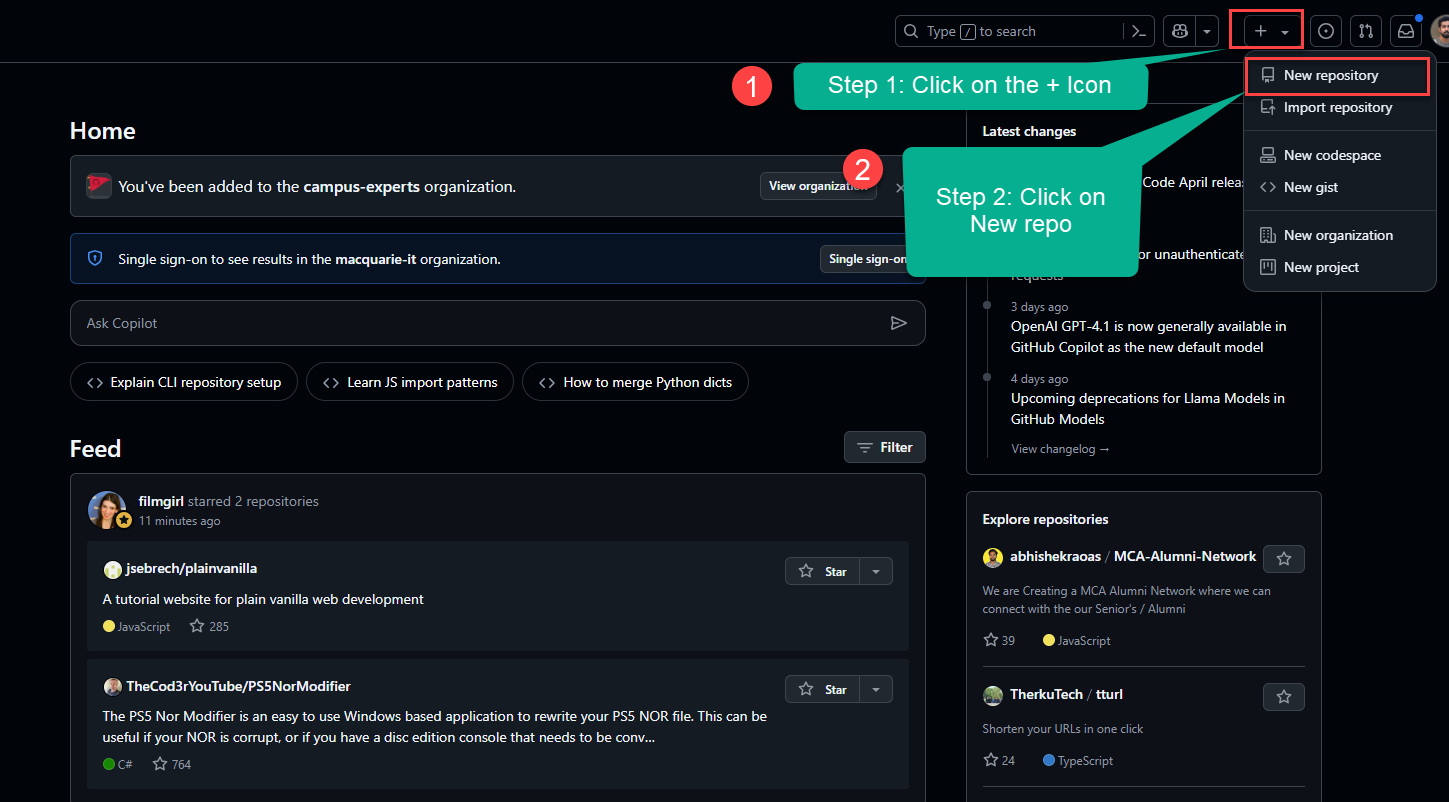
Step 1: Go to GitHub and create a new Repository.
Step 2: Specify the name of your project, make it public or private, check the option to include a README file. Then click on Create repository on the button below.
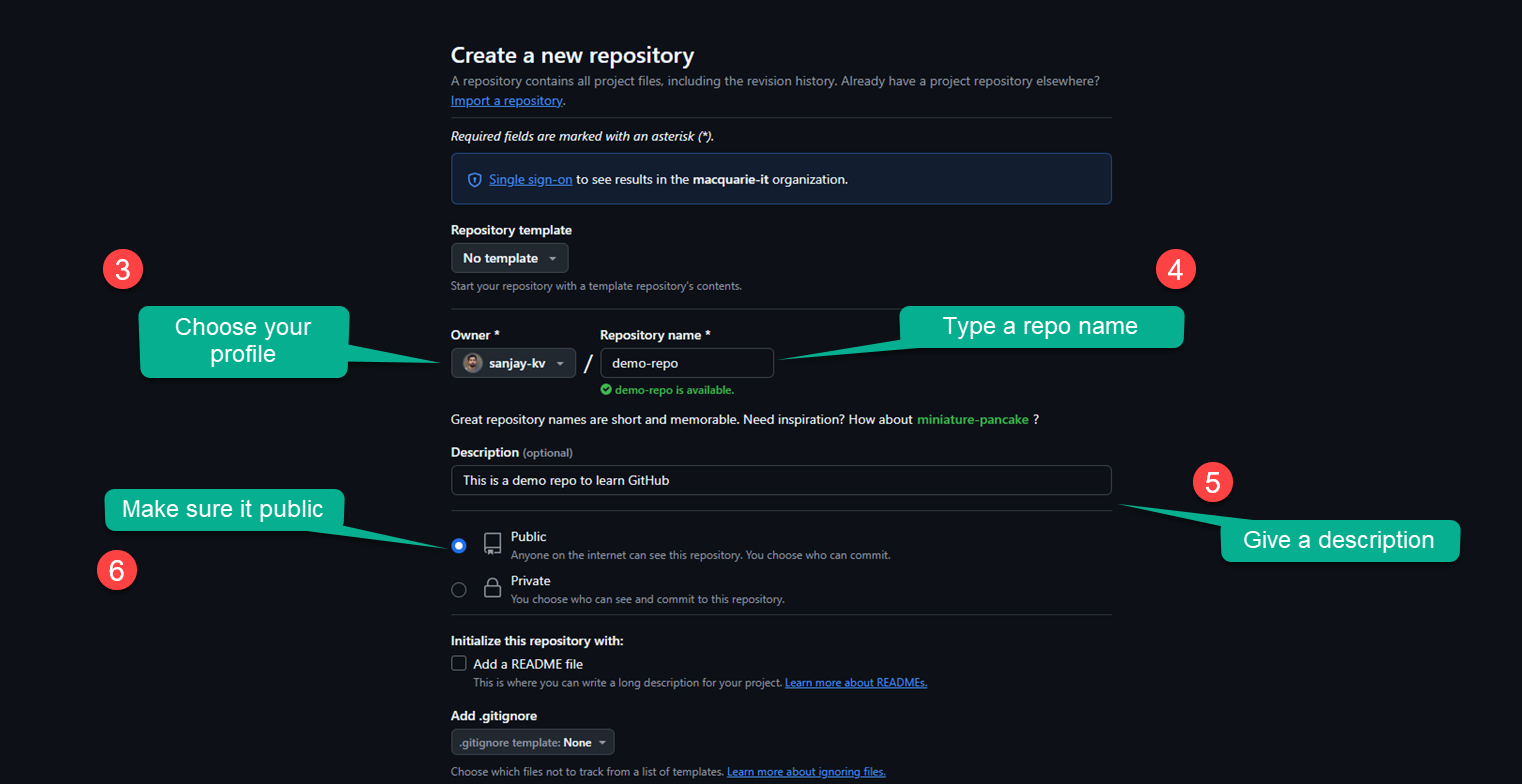
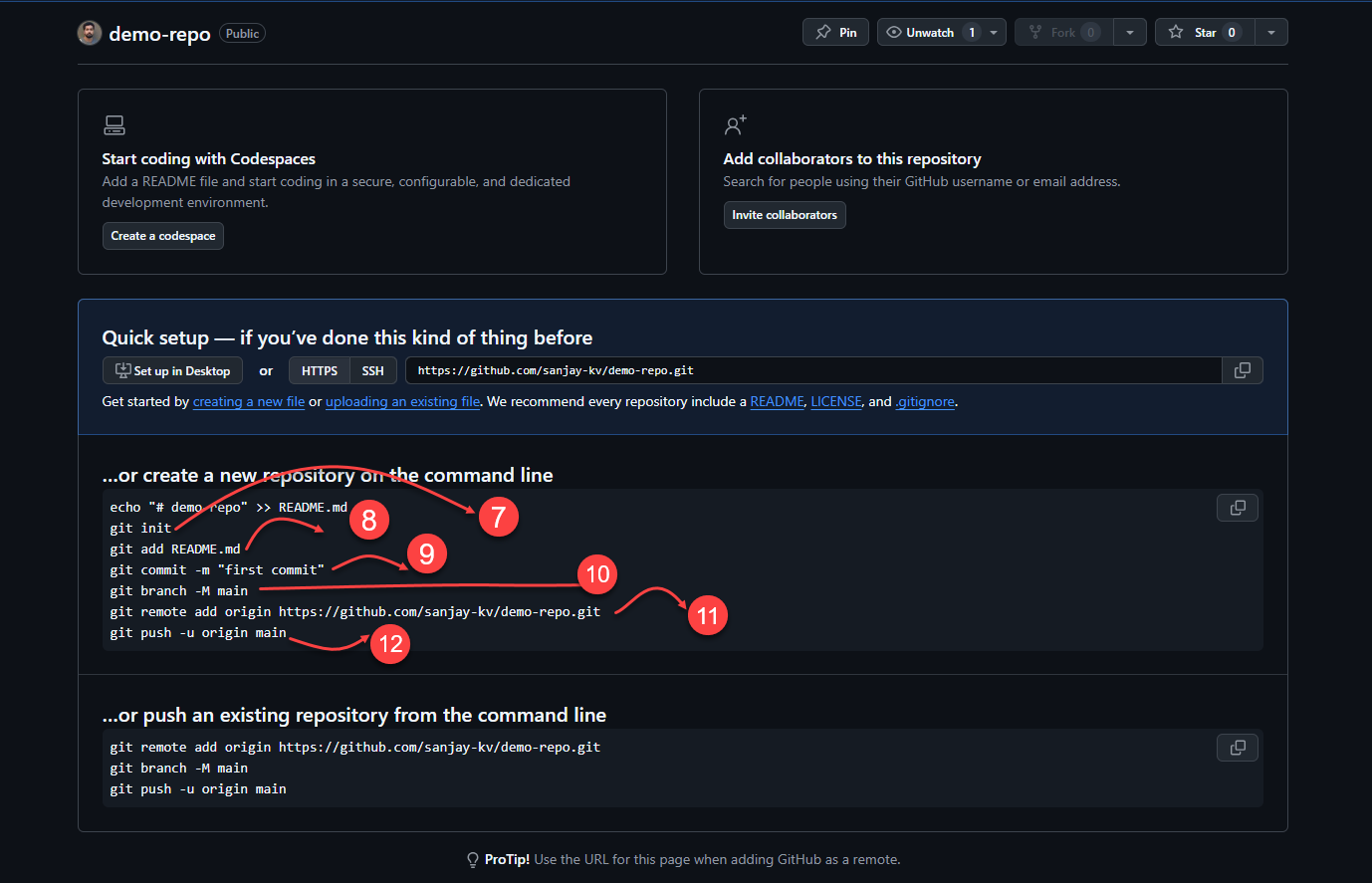
Once the repository is created, you'll see a screen similar to the one below, the explanation for each element is provided below.
echo "# demo-repo" >> README.md
git init
git add README.md
git commit -m "first commit"
git branch -M main
git remote add origin https://github.com/sanjay-kv/demo-repo.git
git push -u origin main
<!DOCTYPE html>: Declares the document type and version of HTML.<html>: Root element that contains all other elements.<head>: Contains metadata about the document. It includes elements like<meta>and<title>.<meta charset="UTF-8" />: Specifies the character encoding of the document.<meta name="viewport" content="width=device-width, initial-scale=1.0" />: Sets the viewport properties for responsive design.<title>: Sets the title of the document (displayed in the browser tab).<body>: Contains the visible content of the document.<!-- Your content goes here -->: Represents a comment that is not displayed in the browser.
Browser Rendering
When the above HTML code is rendered in a browser, it will display the following content:
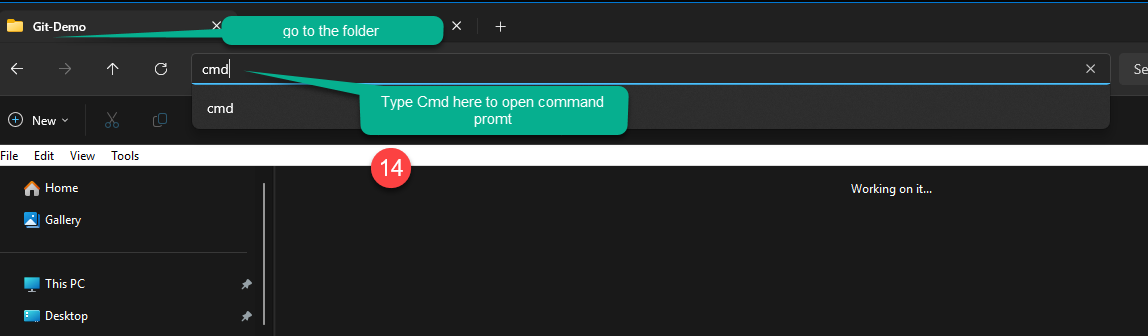
When the above HTML code is rendered in a browser, it will display the following content:
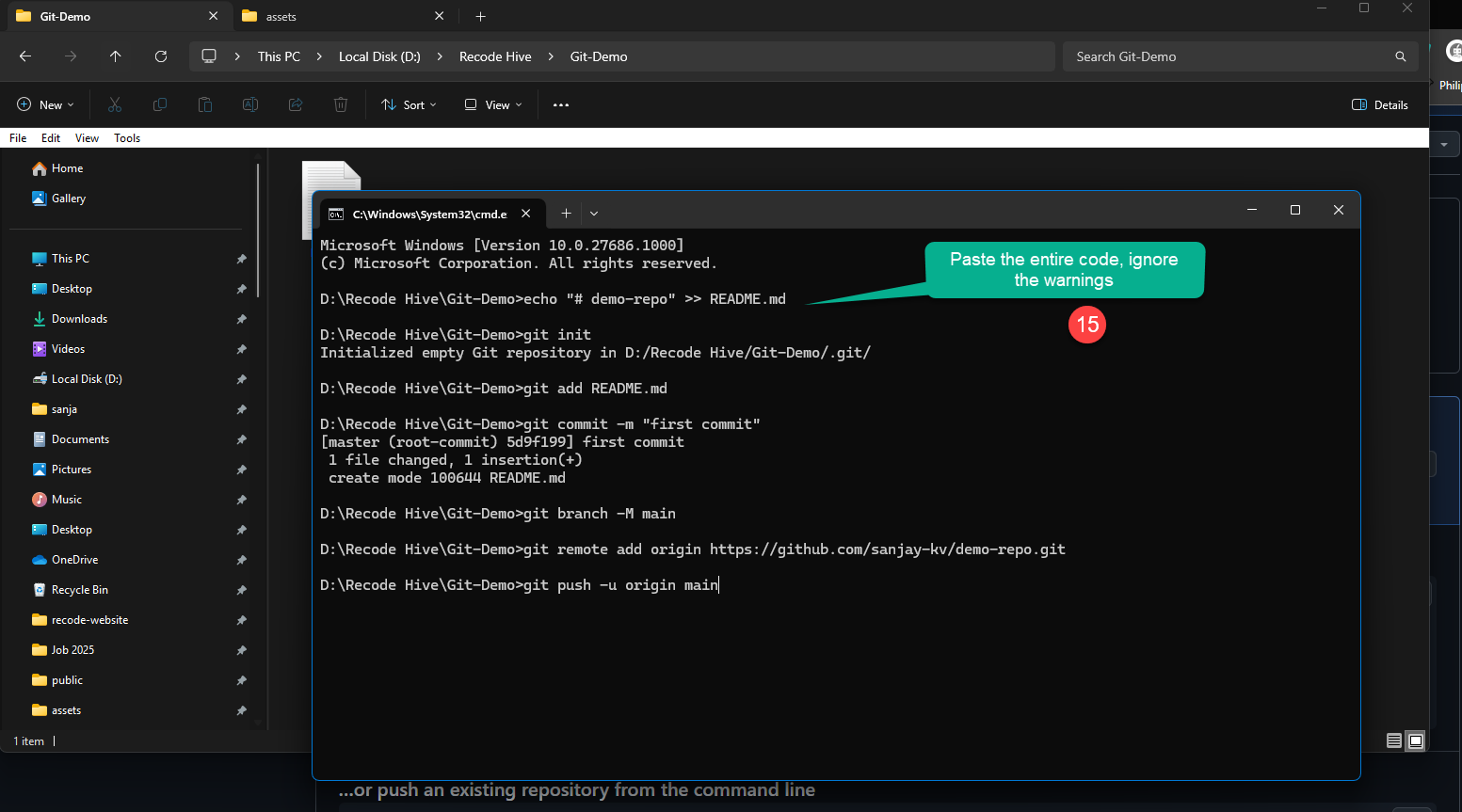
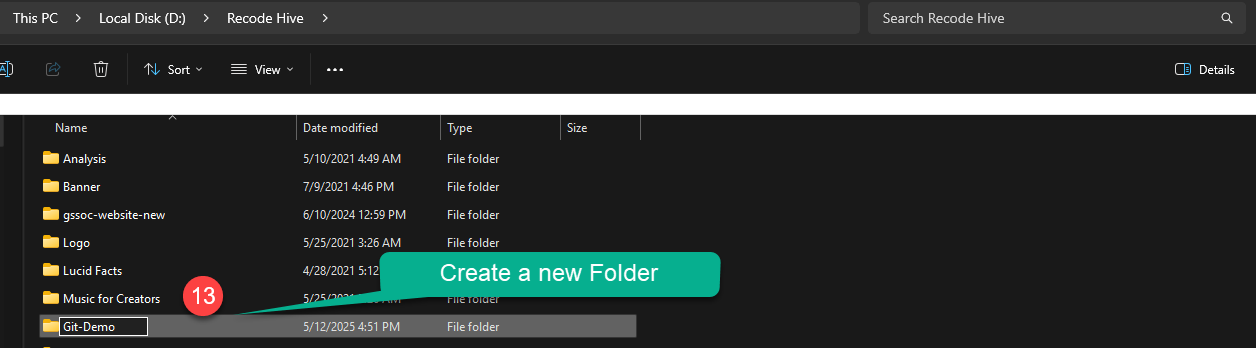
Now you can see the new file has been added to your local system
When the above HTML code is rendered in a browser, it will display the following content:

When the above HTML code is rendered in a browser, it will display the following content: How to push Github Repository? Step 10: Once the work is done, click save and open cmd or Terminal
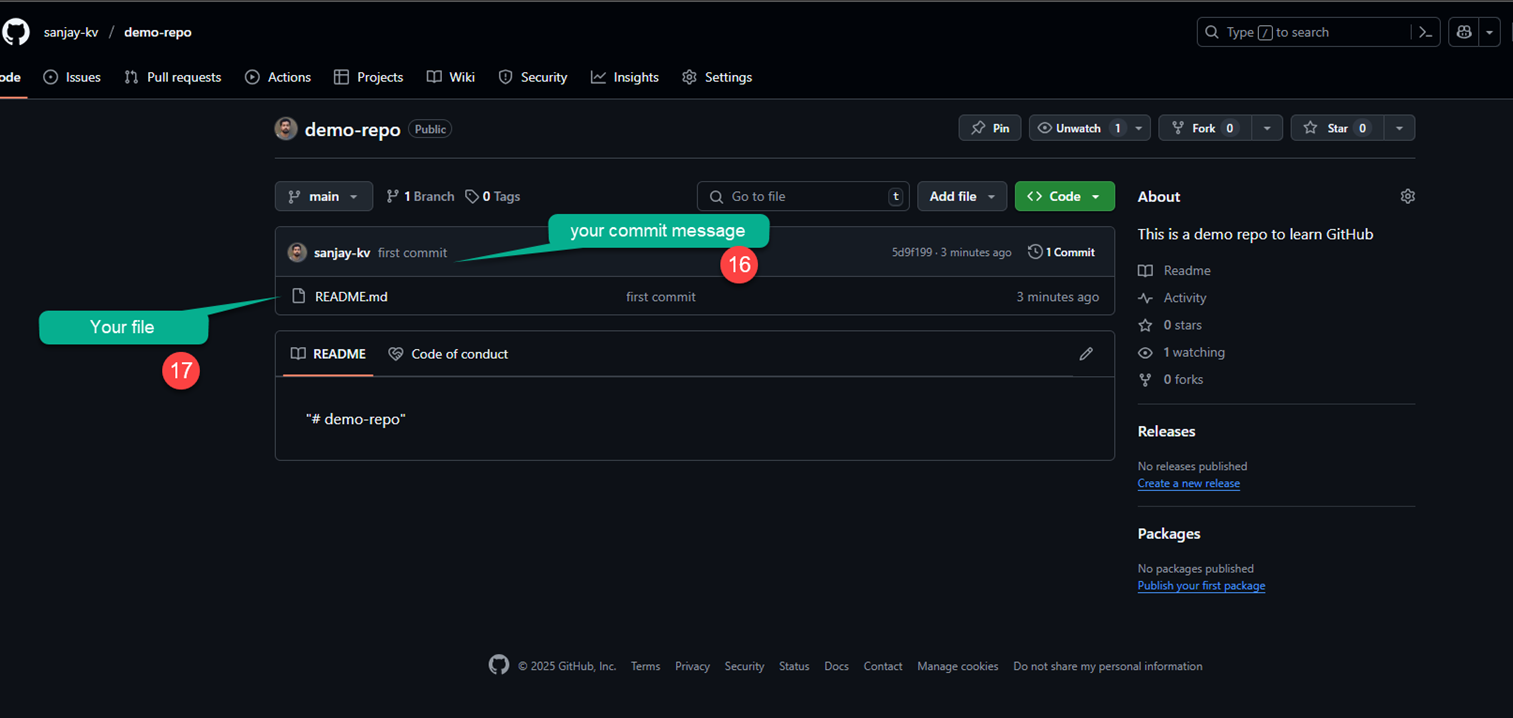
Step 11: Initially when I was creating the repo I used Git add * to add all files in one go.
If you are committing for the first time, Git may prompt you to enter your GitHub email id and username to proceed. The screenshot below shows an example of the prompt. After entering these details, when you run the git push command, a browser window may open asking you to sign in to GitHub.
git config --global user.email "Enter your github Email"
git config --global user.name "Github username"
Watch the video Tutorial
Conclusion
In this tutorial, you learned about the syntax and structure of HTML. HTML syntax consists of elements, tags, and attributes that define the structure and content of a web page.
A HTML document follows a basic structure with elements like <!DOCTYPE html>, <html>, <head>, <title>, <meta>, and <body>.
Understanding HTML syntax and structure is essential for creating web pages and applications.